General Settings
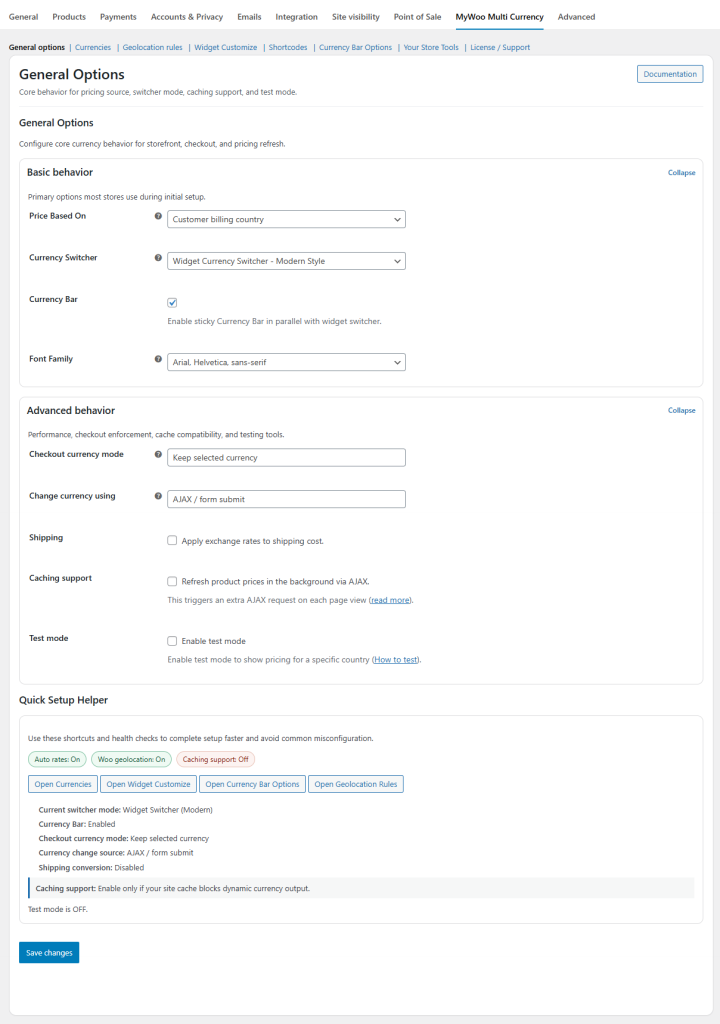
The General Settings section is the main starting point for configuring MyWoo Multi Currency 3.0.
This area controls the core behavior of the plugin, including pricing logic, currency display behavior, shipping conversion support, test mode, and general storefront options that affect how visitors experience regional and multi-currency pricing.
General Settings Overview
Use General Settings to configure the most important plugin-wide options, including:
- Base pricing logic
- Currency switcher behavior
- Currency symbol display options
- Shipping conversion support
- Caching-related behavior
- Test mode for controlled country-based checks
This section should be reviewed before setting up advanced region rules, widget customization, or shortcode-based storefront placement.
Where to Find General Settings
To get started, go to:
WooCommerce → Settings → MyWoo Multi Currency → General options
Pricing Logic
The pricing-related settings determine how MyWoo Multi Currency should calculate and display product prices for different customers.
Depending on your store workflow, pricing can be influenced by regional currency rules, exchange-rate logic, and customer location context.
This helps the plugin work correctly for stores that need country-aware or currency-aware pricing behavior.
Currency Switcher
The General Settings area also controls the default behavior of your currency switcher.
From here, you can define how switching tools behave before moving into deeper customization areas such as:
- Widget Customize
- Currency Bar Options
- Shortcodes
If you plan to use the switcher in widget areas, builder layouts, or custom storefront placements, start with the general settings first and then continue with detailed UI customization.
Currency Symbol Display
Currency symbol settings help define how prices appear across the storefront.
For example, you may want the symbol displayed next to country or currency information depending on the selector style and storefront design.
This is especially useful for stores that want a clearer and more recognizable international pricing experience.
Shipping Conversion
If enabled, shipping costs can also follow exchange-rate logic depending on how your store is configured.
This helps keep shipping values aligned with the active regional currency experience instead of showing only the base-store currency.
Caching and Geolocation Support
MyWoo Multi Currency works closely with WooCommerce geolocation and caching-sensitive storefront behavior.
If your store uses aggressive caching, make sure:
- WooCommerce geolocation is enabled correctly
- Cached pages are cleared after important setting changes
- You test region and currency behavior using the appropriate geolocation mode
This is especially important for country-based pricing, regional currency mapping, and automatic switching workflows.
Test Mode
Test Mode allows you to simulate country-based storefront behavior in a controlled way without needing to physically access the store from another location.
This is useful when checking:
- Regional pricing rules
- Currency mapping
- Exchange-rate behavior
- Storefront switcher output
For the most accurate results, perform your tests in a new private/incognito browser window after clearing cache.
Recommended Setup Flow
A recommended setup order is:
- Review General Settings
- Configure Currencies
- Set up Geolocation Rules
- Customize storefront UI in Widget Customize
- Configure Shortcodes or Currency Bar Options if needed
- Run tests using Test Mode and a clean browser session
This workflow helps reduce configuration errors and gives a more predictable first setup experience.
Important Notes
- Always review your general options before testing regional rules or shortcode output.
- After changing pricing, geolocation, or caching-related settings, clear all cache layers before testing the storefront.
- Use private/incognito mode when testing country-based behavior manually.
- Some checkout and multi-currency behavior may depend on the payment gateway used on your store.